Online training is growing fast across the USA. Yet many companies still ignore one important question. Can every learner actually use their course? This includes people who are blind, deaf, or have motor or cognitive challenges. If the answer is no, the course is not compliant. It may also break the law.
This guide will help you check your own course. You will get a simple self audit checklist. You will also learn what it usually costs to fix common problems. By the end, you will know exactly where your course stands.
Why ADA and WCAG Compliance Matters in the USA
The Americans with Disabilities Act, known as ADA, protects people with disabilities across the USA. Many courts now treat online courses the same way they treat physical buildings. So, a course that blocks access for disabled learners can lead to legal trouble.
WCAG stands for Web Content Accessibility Guidelines. These are technical standards. They explain exactly how to make digital content accessible. Most legal cases in the USA refer back to WCAG when judging if a course is fair to use.
Together, ADA and WCAG work like two halves of one rule. ADA is the law. WCAG is the technical roadmap that helps you follow that law.
Accessibility is not only about avoiding lawsuits, though. It also widens your audience. More learners can finish your course. Completion rates often rise once barriers are removed. This connects closely with smart LMS choices, since the right platform supports accessible features from day one.
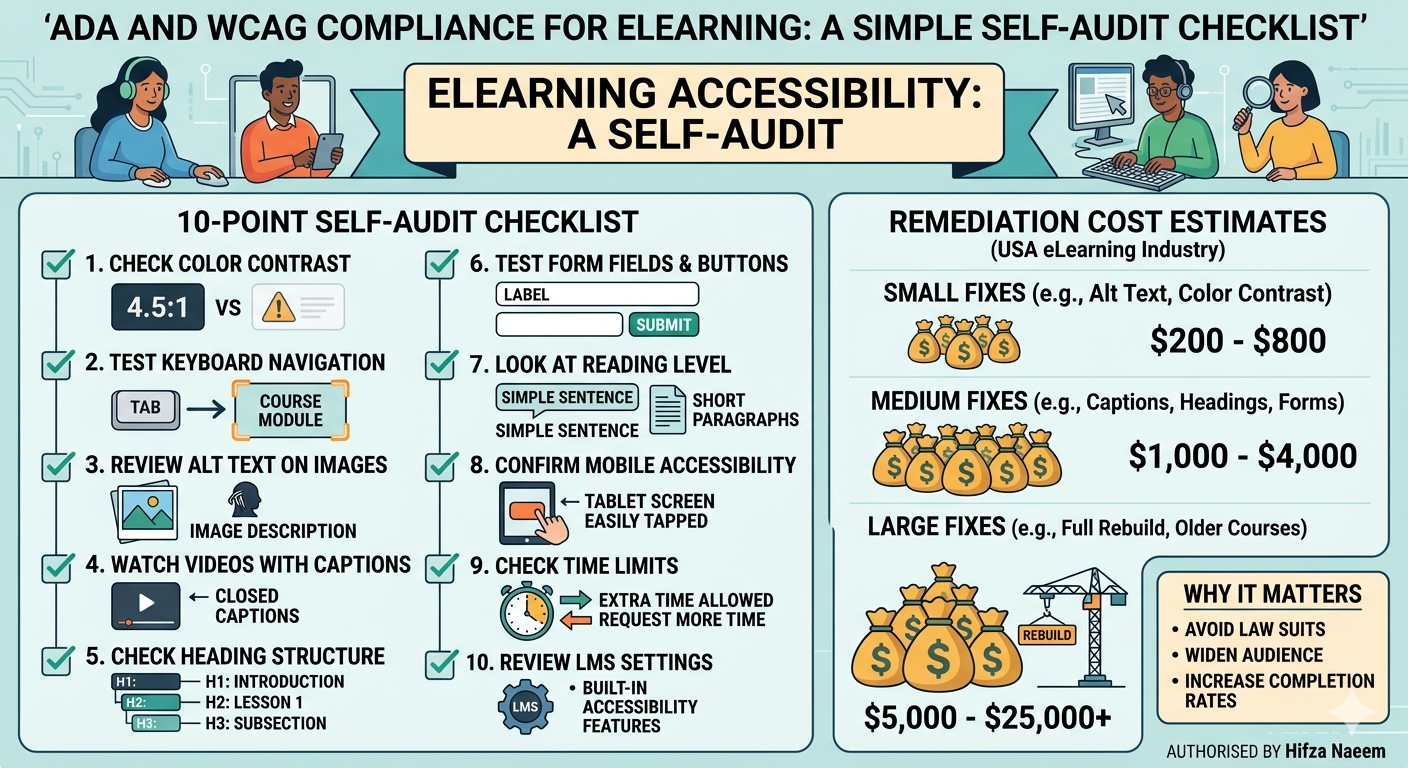
The Free Self Audit Checklist
Use this checklist to review your course today. You do not need expensive software to start. A few minutes and careful attention can reveal a lot.
1. Check Your Color Contrast
Open your course and look closely at the text. Ask yourself if the words stand out clearly against the background. WCAG asks for a contrast ratio of at least 4.5 to 1 for normal text. Low contrast makes reading hard for people with low vision.
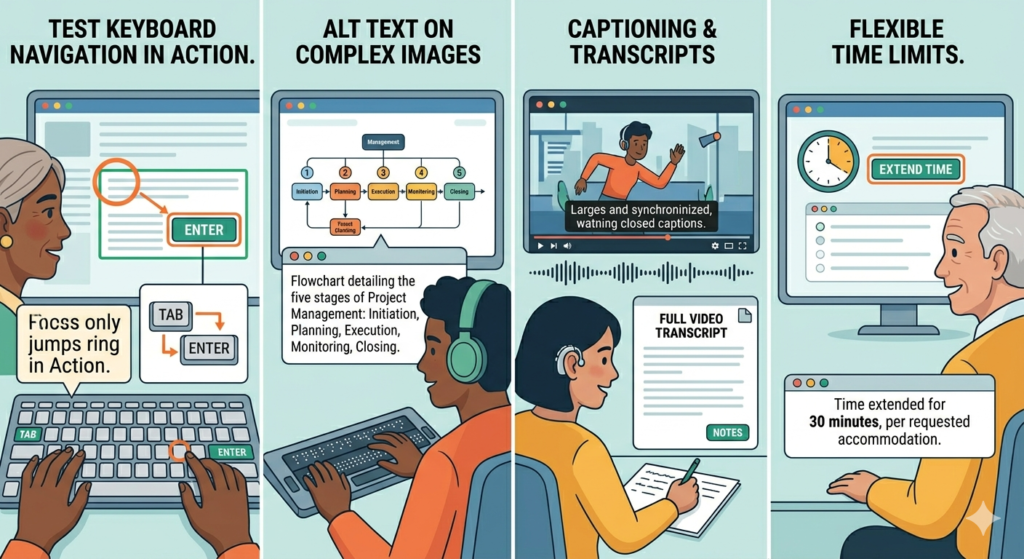
Put your mouse aside. Try moving through the entire course using only your keyboard. Use the tab key to move forward. Use shift and tab to move back. If you get stuck anywhere, that is a barrier. Many learners with motor disabilities rely fully on keyboards.
3. Review Alt Text on Images
Every meaningful image needs alt text. This is a short, written description. Screen readers read this text aloud. Without it, blind learners miss important visual content completely. Check each image one by one. Decorative images can be marked as such, so screen readers skip them.
4. Watch Your Videos With Captions On
Turn on captions for every video in your course. Read along as the video plays. Captions should match the spoken words closely. They also need correct timing. Deaf and hard of hearing learners depend on accurate captions to follow along.
5. Check Heading Structure
Headings are not just for style. They help screen reader users jump through content easily. Make sure your course uses a clear heading order. Headings should not skip levels randomly. For example, do not jump from a main heading straight to a small subheading without anything in between.
6. Test Form Fields and Buttons
If your course has quizzes or sign up forms, test every field. Each input box should have a clear label attached to it. Buttons should describe their purpose clearly, such as Submit Answer instead of just Click Here.
7. Look at Reading Level and Language
Plain language helps everyone. It especially helps learners with cognitive disabilities or those still learning English. Avoid long, complex sentences. Break ideas into smaller chunks. Use short paragraphs throughout your course.
8. Confirm Mobile Accessibility
Many learners use phones and tablets. Open your course on a smaller screen. Buttons should be large enough to tap easily. Text should resize properly without breaking the layout.
9. Check Time Limits
Some quizzes have strict timers. This can disadvantage learners who read slowly or need extra processing time. Where possible, allow extra time or let learners request more time.
10. Review Your LMS Settings
Your learning platform itself plays a big role here. Some systems support accessibility better than others. If you are still deciding on a platform, this earlier guide on choosing the right LMS explains what to look for, including accessibility features built into the system.
Common Accessibility Problems Found in eLearning Courses
After running audits across many courses in the USA, certain problems appear again and again.
Missing alt text is extremely common. Many course creators simply forget this step. Poor color contrast also shows up often, especially in courses with bold, modern color schemes that look nice but fail accessibility tests.
Auto generated captions cause trouble too. They often get words wrong, especially names or technical terms. This confuses learners who depend on captions the most.
Keyboard traps are another frequent issue. This happens when a learner gets stuck inside a pop up or quiz and cannot tab out of it. It feels frustrating for any user, but it is a complete blocker for someone who cannot use a mouse.
Many of these problems can now be caught earlier through smarter tools. For instance, AI powered learning systems can flag accessibility issues automatically during content creation, saving time later.
What It Costs to Fix Accessibility Issues
Costs vary depending on how big your course library is and how severe the problems are. Still, here is a general breakdown based on typical pricing seen across the USA eLearning industry.
Small Fixes
Simple issues like fixing alt text or adjusting color contrast usually cost the least. For a single course, expect somewhere between 200 and 800 US dollars if you hire a freelancer or small agency. These fixes do not require deep technical rebuilding.
Medium Fixes
Captioning videos accurately, fixing heading structures, and adjusting forms fall into this range. For a mid sized course with several videos, costs often land between 1,000 and 4,000 US dollars. Professional captioning services charge per minute of video, so longer courses cost more.
Large Fixes
If your entire course was built without accessibility in mind, a full rebuild may be needed. This often applies to older courses built years ago. Full remediation projects can range from 5,000 to 25,000 US dollars or more, depending on course length and complexity.
Ongoing Costs
Accessibility is not a one time task. New content needs regular checks. Many companies in the USA now budget for ongoing audits every six to twelve months. This keeps courses compliant as content gets updated.
Choosing the right tools early can lower these costs significantly over time. Platforms that track learner data through standards like xAPI can also help measure how accessibility improvements affect completion rates. This guide on xAPI and Learning Record Stores explains how that tracking works in more detail.
How AI and Modern Tools Are Changing Accessibility Work
Artificial intelligence is reshaping how teams handle accessibility. Instead of manually checking every slide, many teams now use AI assisted tools to scan content quickly.
These tools can detect missing alt text, weak color contrast, and caption errors within minutes. This saves time compared to older manual methods. Still, human review remains necessary. AI can miss context that only a real person would catch, especially around tone and meaning.
If you want a deeper comparison between automated and human led design work, this article on AI compared to traditional instructional design breaks down the strengths and limits of each approach.
Newer integrations are also emerging through systems like the Model Context Protocol for learning platforms. These connections allow learning tools to share data more smoothly, which can support faster accessibility checks across multiple courses at once.
Building Accessibility Into Future Courses
Fixing old courses matters. However, preventing future problems matters even more. Once your team understands WCAG basics, accessibility becomes part of the normal design process rather than an afterthought.
Train your content creators early. Teach them to write alt text as they upload images, not months later. Encourage writers to use plain language from the first draft. Choose video tools that support accurate captioning from the start.
Over time, this approach saves money. Fixing problems during creation always costs less than fixing them after launch.
Final Thoughts
Accessibility protects your learners and your organization. It also strengthens your reputation across the USA, where legal scrutiny around digital accessibility keeps growing. Use the checklist in this guide as a starting point. Then, plan a realistic budget based on what you find.
Whether you choose to fix issues yourself or work with eLearning experts, the goal stays the same. Every learner deserves equal access to training, regardless of ability.
Frequently Asked Questions
Which WCAG compliance checklist is most reliable for online training content?
The official WCAG 2.2 checklist from the World Wide Web Consortium remains the most trusted resource. It covers all major accessibility rules in detail. Many eLearning teams in the USA also create shorter internal checklists based on this official version, focused on common issues like contrast, captions, and keyboard access.
What is the difference between ADA and WCAG compliance?
ADA is a civil rights law in the USA. It requires equal access for people with disabilities, including in digital spaces. WCAG is a technical standard that explains how to actually build accessible content. In simple terms, ADA tells you what the law expects, while WCAG tells you how to meet that expectation through specific design choices.
How do you choose an eLearning accessibility audit tool for WCAG standards?
Look for a tool that checks contrast, alt text, captions, and keyboard navigation automatically. It should also generate a clear report you can share with your team. Free browser extensions work well for quick checks, while paid tools often offer deeper scanning across entire course libraries.
Which software helps ensure WCAG compliance in corporate training modules?
Many authoring tools now include built in accessibility checkers. Popular options used across the USA include Articulate 360, Adobe Captivate, and Rise 360. These tools flag issues during the design stage, before the course goes live.
What are the best free tools for auditing eLearning courses against ADA requirements?
Free options include the WAVE accessibility checker, axe DevTools, and the Colour Contrast Analyser. These tools scan pages quickly and highlight common problems. They will not catch everything, but they offer a strong starting point before deeper manual testing.
References
World Wide Web Consortium. WCAG 2.2 Guidelines. https://www.w3.org/WAI/standards-guidelines/wcag/
ADA.gov. Americans with Disabilities Act Information. https://www.ada.gov/
WebAIM. Introduction to Web Accessibility. https://webaim.org/intro/
Section508.gov. IT Accessibility Laws and Policies. https://www.section508.gov/
W3C Web Accessibility Initiative. Easy Checks, A First Review of Web Accessibility. https://www.w3.org/WAI/test-evaluate/preliminary/
Authorised By
Hifza Naeem