
In today’s data-driven world, mastering Microsoft Excel remains one of the most valuable skills for career growth. Whether you’re analyzing sales reports, building financial models, or creating interactive dashboards, an Excel Course equips you with practical tools that employers demand. At TheEduAssist, we specialize in custom eLearning development, and our Ultimate Excel Course Video Guide stands out as the most effective, flexible, and results-oriented option available especially for busy professionals in Sydney, Los Angeles (LA), and global markets.
Why an Excel Course Is Essential in 2026 and Beyond?
Excel proficiency isn’t just a resume filler it directly impacts productivity and earning potential. Professionals who master advanced Excel features like PivotTables, Power Query, dynamic arrays, and data visualization can boost efficiency by automating repetitive tasks and uncovering insights from complex datasets. Studies and industry reports consistently show that strong Excel skills correlate with higher salaries and faster promotions in fields such as finance, marketing, operations, and project management.
Yet, not everyone has the time or budget for traditional classroom training. That’s where our video-based Excel Course changes the game.
The Limitations of In-Person Excel Courses in Sydney and LA
Sydney and Los Angeles offer excellent in-person Excel Course options through providers like university continuing education centers, private training firms, and corporate workshops. In Sydney, options include hands-on sessions at the University of Sydney’s Centre for Continuing Education or Nexacu’s classroom training in North Sydney. In LA, providers such as Training Connection, Noble Desktop, and local community colleges deliver beginner-to-advanced programs with live instructor support.
These in-person programs have strengths real-time feedback and networking opportunities—but they come with significant drawbacks:
- Fixed schedules and travel demands: Commuting in traffic-heavy cities like Sydney or LA eats into your workday.
- Higher costs: Classroom sessions, materials, and potential lost productivity add up quickly.
- One-size-fits-all pace: If you’re a fast learner or need to revisit a concept, you’re out of luck once the session ends.
- Limited accessibility: Not ideal for remote teams or professionals balancing family and work.
We’ve seen many clients from Sydney and LA initially explore local in-person options only to realize they needed something more scalable and repeatable.
Creating High-Quality Excel Course Videos
Creating high-quality Excel course videos requires strategic planning, reliable tools, and engaging delivery to captivate learners worldwide. This guide draws from proven techniques used by top creators to produce professional tutorials that teach everything from basic formulas to advanced automation.
Essential Planning Steps Excel Course Videos:
Start with a detailed script outlining key Excel topics like VLOOKUP, pivot tables, and charts, ensuring logical progression from beginner to advanced. Break content into 5-15 minute segments for better retention, incorporating real-world examples such as budgeting spreadsheets or data dashboards. Use tools like Office Scripts to pre-record demos for smooth playback during filming.
Top Recording Tools Excel Course Videos:
Camtasia and ScreenFlow excel for polished Excel videos with built-in editing, annotations, and cursor effects to highlight cells or formulas. Free options like OBS Studio or ScreenPal suit beginners, capturing screen, webcam, and narration seamlessly for tutorials. Tella offers quick record-edit-share workflows, ideal for demonstrating Excel actions like conditional formatting.
Production and Editing Best Practices
Record in a quiet space with a quality mic, zooming on Excel interface while narrating clearly add humor or projects to avoid dullness, as noted by creators. Edit ruthlessly: trim pauses, overlay text for formulas (e.g., =SUM(A1:A10)), and insert zooms or arrows for clarity. Export in 1080p MP4 for YouTube or course platforms.
Engagement and Monetization Strategies
Boost viewer interaction with quizzes, timestamps, and calls-to-action like “Try this formula now.” Optimize thumbnails with Excel screenshots and titles like “Excel Full Course 2026.” Monetize via YouTube ads, affiliates, or selling templates on Gumroad channels earn $1,000+ monthly from faceless Excel content.
Advanced Tips for Pros
Incorporate Office Scripts for automated demos, editable post-recording via code tweaks for dynamic ranges. Test on Excel Online for web compatibility, and analyze analytics to refine future videos. Consistent uploads build audiences, turning tutorials into full courses.
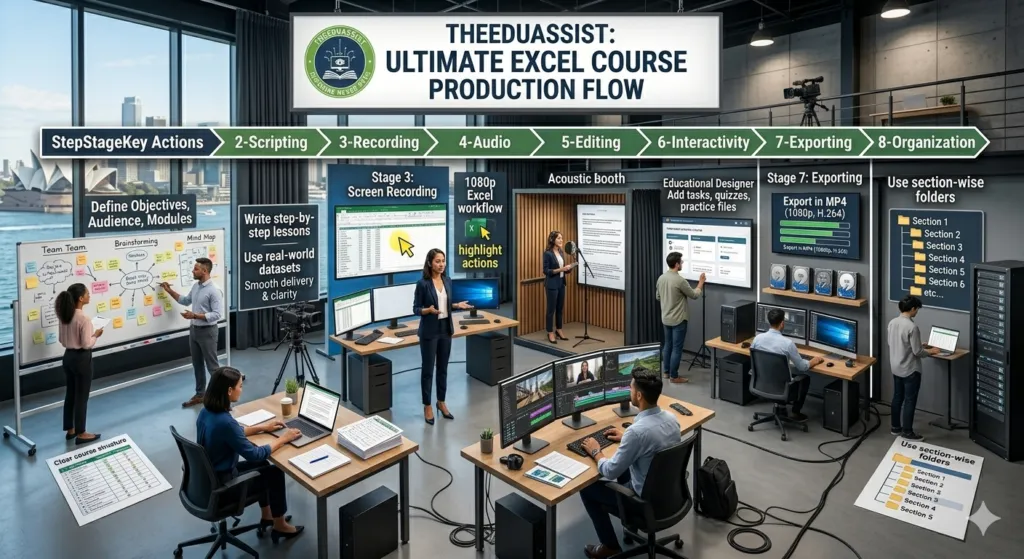
Excel Course Video Creation: Step-by-Step Table Guide:
| Step | Stage | Key Actions | Tools / Tips | Outcome |
|---|---|---|---|---|
| 1 | Planning | Define objectives, audience, modules | Break into 5–10 min lessons | Clear course structure |
| 2 | Scripting | Write step-by-step lessons, examples | Use real-world datasets | Smooth delivery & clarity |
| 3 | Screen Recording | Record Excel workflows in 1080p | Clean desktop, slow cursor, highlight actions | Professional raw footage |
| 4 | Audio | Record or sync voiceovers | Use clear voice, quiet environment | High-quality sound |
| 5 | Editing | Cut mistakes, add zooms & highlights | Use cursor effects, text overlays | Engaging, polished videos |
| 6 | Interactivity | Add tasks, quizzes, practice files | Encourage pause & practice | Better retention |
| 7 | Exporting | Export in MP4 (1080p, H.264) | Keep file size optimized | Platform-ready videos |
| 8 | Organization | Structure folders & naming system | Use section-wise folders | Easy management & updates |
Common Mistakes to Avoid:
| Mistake | Impact | Solution |
|---|---|---|
| Long unedited videos | Low engagement | Keep lessons short |
| Poor audio quality | Viewer drop-off | Use clean voiceovers |
| No structure | Confusion | Plan modules clearly |
| Too much information | Overwhelm | Focus on one concept per lesson |
| No visuals/emphasis | Hard to follow | Use highlights & zooms |
Advanced Optimization Tips:
| Strategy | How to Apply | Benefit |
|---|---|---|
| Real-world datasets | Use HR, finance, sales examples | Practical learning |
| Story-based teaching | Problem → solution format | Better engagement |
| Visual emphasis | Highlight formulas & actions | Improved clarity |
| Career-focused lessons | Job-based scenarios | Higher course value |
| Interactive tasks | Assign practice exercises | Increased retention |
TheEduAssist’s Ultimate Excel Course Video Guide: Built for Real Results
At TheEduAssist, we don’t just offer another generic Excel Course we design and develop the ultimate video-based solution tailored to your exact needs. Our custom eLearning approach combines high-quality video production, interactive elements, AI-powered personalization, and measurable outcomes. Here’s what makes our Excel Course truly ultimate:
- Comprehensive Curriculum from Beginner to Expert
Our video guide covers everything: foundational formulas and functions, data cleaning with Power Query, advanced PivotTables and dashboards, conditional formatting, macros/VBA automation, and even integration with modern tools like Power BI. We include real-world business scenarios so learners immediately apply skills on the job. - Engaging Video-First Format with Interactive Enhancements
Professional audio/video production ensures crystal-clear explanations, screen recordings, and step-by-step walkthroughs. We add gamification, microlearning modules, quizzes, and scenario-based simulations—features that keep engagement high and knowledge retention strong. Unlike static YouTube tutorials, our content is structured, scorable, and LMS-ready (SCORM/xAPI compatible). - Self-Paced and Fully Accessible
Learn from anywhere—your Sydney apartment, LA office, or while traveling. Pause, rewind, and revisit sections anytime. Mobile-optimized modules mean you can complete lessons on your phone during a commute. - AI-Powered Personalization
Our AI-driven eLearning adapts to each learner’s progress, suggesting additional practice where needed and accelerating through familiar topics. This adaptive intelligence is a hallmark of TheEduAssist’s custom development process. - Cost-Effective and Scalable for Teams
Whether you’re an individual professional or a company upskilling an entire department, our video guide delivers enterprise-level training at a fraction of repeated in-person costs. We also handle legacy content conversion if your organization already has older Excel training materials.
We collaborate with subject-matter experts during development, create detailed storyboards, and ensure WCAG accessibility standards so every learner succeeds. The result? A truly custom Excel Course that feels personal even when delivered at scale.
Proven Advantages of Our Video-Based Excel Course:
Research and learner feedback confirm that well-designed online video training often outperforms traditional classroom formats in flexibility, retention, and ROI. Learners can review complex topics (like VLOOKUP vs. XLOOKUP or dynamic array formulas) as often as needed without pressure. Teams in Sydney or LA love the ability to train asynchronously while still achieving measurable skill gains through built-in assessments and analytics dashboards.
Ready to Master Excel Course with TheEduAssist?
If you’re searching for the ultimate Excel Course that combines the convenience of video learning with the depth and interactivity of premium custom eLearning, TheEduAssist has you covered. Our solutions are trusted by businesses, educational institutions, and creators worldwide who need engaging, results-driven training.
Contact us today at Info@theeduassist.com or visit theeduassist.com to discuss your custom Excel Course Video Guide. Whether you’re based in Sydney, LA, Lahore, Seattle, or anywhere else, we’ll build a solution that fits your goals, timeline, and budget.
Excel mastery isn’t about where you learn it’s about how effectively you learn. Choose TheEduAssist and unlock your full potential with the ultimate video-powered Excel Course.
Conclusion:
Creating high-quality Excel course videos requires strategic planning, reliable tools, and engaging delivery to captivate learners worldwide. By following the essential planning steps, leveraging the right recording tools, applying professional production and editing best practices, and implementing smart engagement and monetization strategies, you can produce professional tutorials that teach everything from basic formulas to advanced automation. Consistent effort and a focus on learner value will help you build a loyal audience and turn your Excel videos into a successful full course. Start applying these techniques today and watch your content stand out in the competitive eLearning space.
References:
https://www.expertrain.co.uk/post/the-most-valuable-microsoft-office-skills-for-jobs-in-2026
FAQs
What is the ideal length for each Excel course video?
Break content into 5-15 minute segments for better retention. Shorter videos help maintain viewer attention and make it easier for learners to revisit specific topics like VLOOKUP or pivot tables.
Which tools are best for beginners creating Excel Course tutorials?
Free options like OBS Studio or ScreenPal are excellent for beginners. They allow seamless capture of screen, webcam, and narration. As you grow, consider upgrading to Camtasia or ScreenFlow for advanced editing features.
How can I make my Excel Course more engaging?
Add real-world examples, humor, or mini-projects. Use zooms, arrows, and text overlays to highlight formulas. Include calls-to-action, quizzes, and timestamps to boost interaction and keep learners motivated.
Do I need expensive equipment to produce professional Excel Course videos?
No. A quiet recording space and a quality microphone are the most important. Many successful creators start with free or affordable tools and focus on clear narration and clean screen recordings rather than high-end gear.
How can I monetize my Excel Course videos?
Optimize for YouTube with strong thumbnails and titles like “Excel Full Course 2026.” Earn through ads, affiliate links, or by selling downloadable templates and full courses on platforms like Gumroad. Faceless Excel content can generate significant monthly income with consistent uploads.
What advanced techniques can improve my Excel demo videos?
Incorporate Office Scripts for automated and editable demos. Test videos on Excel Online to ensure web compatibility. Regularly review analytics to refine future videos and maintain audience growth.
How often should I upload Excel tutorial videos?
Consistency is key. Aim for regular uploads to build momentum and turn individual tutorials into a complete, structured Excel course over time.
Authored By: Atiqa Sajid http://www.linkedin.com/in/atiqa-sajid-747b5713