
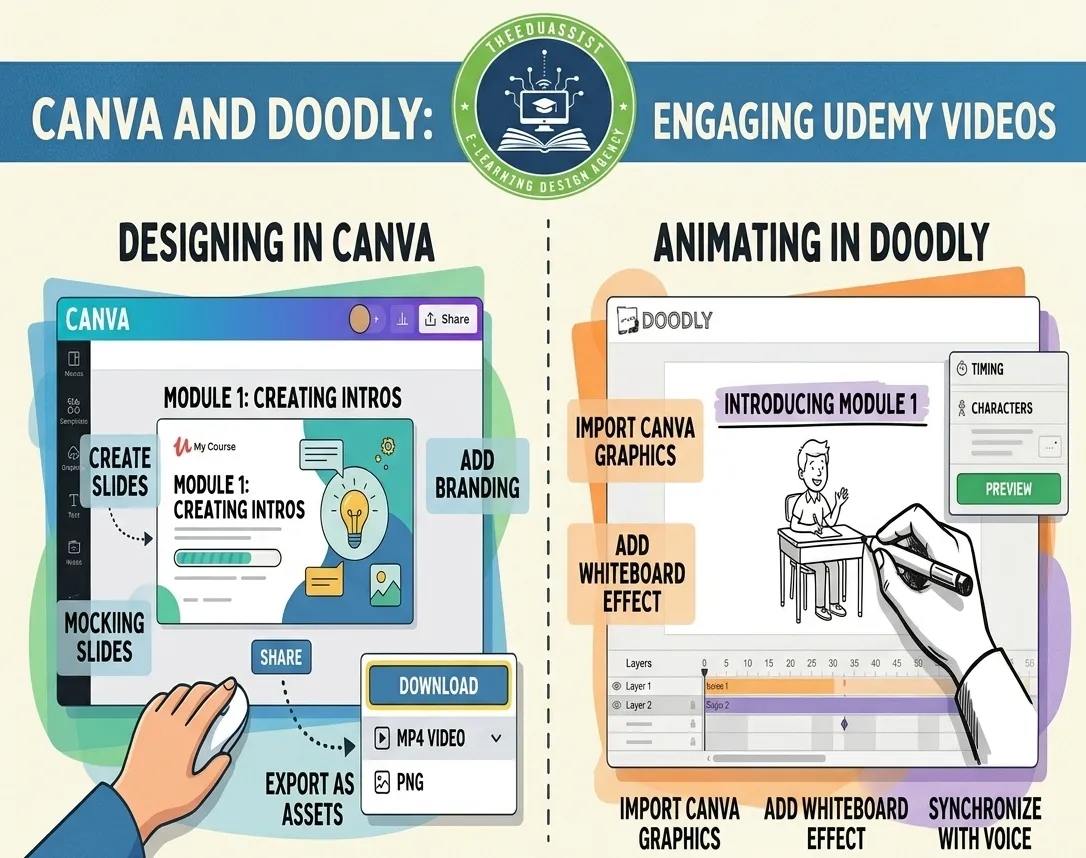
Producing high-quality Udemy Video content is the foundation of a successful online course. Students expect engaging, clear, and professional lectures that hold their attention from start to finish. Whether you’re a beginner instructor or an experienced creator, mastering production using accessible tools like Canva and Doodly can dramatically improve completion rates, reviews, and sales.
In this ultimate guide, we cover everything you need to create standout lectures from meeting Udemy’s technical standards to step-by-step workflows that combine Canva’s powerful video editor with Doodly’s engaging whiteboard animations. As eLearning specialists at TheEduAssist, we’ve helped dozens of instructors launch successful courses by perfecting their Udemy Video production process.
Why High-Quality Udemy Video Is Essential for Course Success?
Udemy’s algorithm rewards courses with strong student engagement and low dropout rates. A well-edited Udemy Video keeps learners hooked, improves knowledge retention, and leads to better reviews. Poorly produced videos blurry footage, mismatched audio, or static slides often result in refunds and lower rankings.
By using Canva for polished multi-track editing and Doodly for dynamic whiteboard explanations, you can create professional Udemy Video content without a big budget or technical expertise. This combination delivers visually rich lectures that feel premium and educational.
Udemy Video Requirements: Must-Know Standards (2026)
Before editing, ensure your Udemy Video files meet these official guidelines to avoid rejection during review:
- Minimum course content: At least 30 minutes of total video across the course.
- Resolution: Minimum 720p (1080p strongly recommended for crisp playback on all devices).
- Aspect ratio: 16:9 (landscape only no vertical or square videos).
- File size: Each video under 4 GB.
- Codec and frame rate: H.264 preferred; 25–60 fps (Udemy typically resamples to 30 fps).
- Content quality: Dynamic visuals synced with clear audio. Avoid static images, low-resolution footage, or audio-only sections.
TheEduAssist Pro Tip: Always test your Udemy Video in the instructor preview mode. Export from Canva or Doodly in 1080p, 16:9 MP4 format to ensure smooth approval and playback.
Why Canva Is Perfect for Editing Professional Udemy Video?
Canva’s video editor offers a modern multi-track timeline, AI-powered tools (including Magic Studio), and thousands of educational templates making it ideal for refining raw recordings into polished Udemy Video lectures. It’s free to start, with Canva Pro unlocking premium stock assets, advanced AI features, and higher export quality.
Key benefits for Udemy Video creators:
- Intuitive drag-and-drop timeline with separate tracks for video, audio, text, and effects.
- Built-in stock library, auto-captions, animations, and AI tools like Image to Video.
- Direct MP4 export optimized for Udemy’s requirements.
- Works seamlessly on desktop or mobile.
Many instructors use Canva to transform screen recordings and slides into engaging segments.
Step-by-Step: Editing Udemy Video with Canva:
- Create a New Project In Canva, start a new Video project using a 16:9 “Educational Video” or “Course Lecture” template.
- Import Your Media Upload screen recordings, clips, or record directly inside Canva (screen + camera).
- Build the Multi-Track Timeline Place your main video on the primary track. Add upper tracks for text overlays, graphics, and animations. Use the audio track for voiceover and background music.
- Edit Professionally Trim and split clips, add smooth transitions, animate text and elements, and apply AI tools for auto-captions or voice enhancements.
- Sync and Refine Ensure visuals perfectly match narration. Preview in full screen.
- Export for Udemy Download as 1080p MP4 (H.264). File sizes remain manageable for quick uploads.
This workflow turns basic recordings into dynamic, student-friendly Udemy Video in under an hour.
Why Doodly Is Excellent for Engaging Udemy Video Animations?
Doodly specializes in realistic hand-drawn whiteboard (and blackboard/glassboard) animations perfect for concept-heavy Udemy Video lectures in subjects like business, math, technology, or skills training.
Standout Doodly features for Udemy Video:
- Simple drag-and-drop interface with Smart Draw technology for custom images.
- Realistic drawing hand animations that make explanations feel alive and memorable.
- Built-in voiceover recording, royalty-free music, and hundreds of characters/props.
- Quick 1080p MP4 export ready for Udemy upload.
Whiteboard animations from Doodly boost retention by letting students “watch ideas being drawn” a proven technique for educational content.
Step-by-Step: Creating Whiteboard Udemy Video with Doodly
- Set Up Your Scene Choose a whiteboard background and drag in doodles, characters, or custom images.
- Add Audio Record or import voiceover and background music.
- Time the Animations Adjust draw speed and element timing for natural pacing.
- Preview and Export Review the sequence, then export as 1080p MP4 optimized for standards.
You’ll have captivating animated segments ready to enhance any lecture.
The Ultimate Workflow: Combining Canva & Doodly
TheEduAssist recommends this hybrid approach for the best Udemy Video results:
- Plan Your Content Decide which sections need whiteboard explanations (use Doodly) versus polished slides or screen recordings.
- Create Animations in Doodly Build and export whiteboard clips as MP4.
- Import into Canva Bring Doodly animations, screen recordings, and other media into one Canva project.
- Polish Video Use Canva’s multi-track timeline to add transitions, text animations, captions, branding, and background music.
- Final Export Ensure 16:9, 1080p MP4 format and upload directly to your Udemy course.
This method delivers professional, engaging Udemy Video that stands out from generic courses.
Advanced Tips to Elevate Your Udemy Video Quality
- Keep individual lectures 5–15 minutes long for better engagement.
- Use Doodly for “lightbulb” explanation moments and Canva for smooth overall flow.
- Add subtitles and on-screen text for accessibility (Canva’s AI makes this easy).
- Maintain consistent branding with custom intros, outros, and color schemes.
- Preview on mobile most Udemy students watch on phones.
- Reuse Canva templates and Doodly scenes to speed up future production.
Final Export & Uploading Your Udemy Video
- Export all files as MP4, 1080p, 16:9.
- Use clear naming (e.g.,
Section1-Lecture1-Introduction.mp4). - Upload via the Udemy instructor dashboard and check preview quality.
Monitor student feedback after publishing and refine future based on comments.
Conclusion:
Mastering Udemy Video editing with Canva & Doodly gives you everything needed to produce high-quality, engaging lectures that stand out on the world’s largest online learning platform. By combining Canva’s intuitive multi-track video editor and powerful AI tools with Doodly’s captivating whiteboard animations, you can create dynamic, professional content that boosts student engagement, improves completion rates, and drives better course reviews and sales.
Whether you’re building your first course or scaling an existing one, this hybrid workflow saves time and delivers results without requiring expensive software or a production team. Remember to always meet Udemy’s video standards, keep lectures concise and visually rich, and test everything before uploading.
At TheEduAssist, we help educators and course creators in Lahore and around the world perfect their production from custom Canva templates and Doodly animations to full course optimization.
TheEduAssist Empowering creators with smarter solutions and professional eLearning support.
References:
https://business-support.udemy.com/hc/en-us/articles/360022570274-Video-Standards
https://community.udemy.com/en/discussion/30624/maximum-length-for-a-video-lecture
https://www.canva.com/design-school/resources/whats-new-in-canva-feb-2026
Frequently Asked Questions (FAQ):
What is the best way to create a professional Udemy Video?
The most effective approach is combining Canva for overall video editing and polishing with Doodly for engaging whiteboard animation segments. This hybrid method allows you to produce dynamic, high-retention lectures quickly and affordably.
Does Canva meet Udemy Video requirements?
Yes. Canva exports high-quality 1080p MP4 videos in 16:9 aspect ratio that fully comply with Udemy’s standards (minimum 720p, under 4 GB per file, H.264 codec). Use Canva’s video editor to ensure your Udemy Video files are dynamic, well-synced, and ready for upload.
Is Doodly good for creating Udemy Video content?
Absolutely. Doodly excels at creating realistic hand-drawn whiteboard animations that make complex topics more memorable. These animations are perfect for educational Udemy Video lectures in subjects like business, technology, math, or skills training.
How long should each lecture be?
Udemy recommends keeping individual lectures between 2–15 minutes for optimal student engagement. Aim for 5–10 minutes per Udemy Video to maintain attention while delivering clear value.
Can beginners create high-quality Udemy Videos with Canva and Doodly?
Yes! Both tools are beginner-friendly. Canva offers drag-and-drop editing with AI assistance, while Doodly uses a simple drag-and-drop interface for animations. No advanced technical skills are required to produce professional Udemy Video content.
What file format and resolution should I export for Udemy Video?
Export all videos as MP4 in 1080p resolution with a 16:9 aspect ratio. This ensures the best playback quality across devices and meets Udemy’s current video standards.
How can TheEduAssist help with my production?
TheEduAssist provides expert guidance, custom templates, hybrid Canva + Doodly workflows, and full Udemy Video production support to help you launch high-performing courses faster.
Do I need Canva Pro or Doodly paid version ?
Canva’s free plan works well for starters, but Canva Pro unlocks premium assets, advanced AI tools, and better export options. Doodly’s paid version is recommended for full access to characters, props, and unlimited exports when creating multiple Udemy Video lectures.
Authored By : Atiqa Sajid http://www.linkedin.com/in/atiqa-sajid-747b57137